
How to Check SEO Ranking: Track Your Google Keyword Positions

Want to know if your website ranks highly on Google? Tracking your search position doesn’t have to be complicated or expensive. Whether you want to see if customers can find your business or why your web traffic suddenly changed, checking your SEO ranking is easier than you think.
In this guide, you’ll learn how to check SEO ranking in simple, reliable ways to find your exact positions on Google, track your top keywords, and fix performance drops before they hurt your business.
How can I check my website’s SEO ranking?
You can check your website’s SEO ranking by using Google Search Console for official performance data, or rank-tracking tools like SEMrush or Ahrefs and private browser windows for real-time keyword positions.
If you check your website ranking using your private browser, use incognito mode or clear your browser cache so personalized search history does not skew your results.
When you check a website’s ranking, you generally look at two different approaches depending on what information you need.
-
Manual Search in Private Browsing
If you just want to see where a single page appears right now, you can search for the term directly on Google. However, Google personalizes search results based on your physical location, previous search habits, and logged-in account details.
If you search for your own website while logged into your account, Google will often shows your site higher up because you visit it frequently.
To get a less personalized view:
- Open an incognito or private browsing window.
- Log out of your Google account.
- Use location-matching tools or browser settings if you want to test how your site ranks in a specific city or region.
-
Automated SEO Tools and Google Search Console
Google Search Console gives you direct performance data for how your site performs in Google Search across all queries. It records every time someone sees your link in search results and tracks your average position over time.
For daily updates, local map rankings , or competitor tracking, we rely on third-party rank trackers. These tools automatically search Google from clean, neutral servers around the world every day, saving you from having to check rankings manually.
How do I find my Google ranking for a keyword?
To find your Google ranking for a specific keyword, you need to conduct a search that bypasses Google’s personalized filters. You can do this manually by using a private browser window adjusted to your target location, or automatically by checking the query report inside Google Search Console or a dedicated rank tracking tool.
Here is the step-by-step process we use to manually find a clean search position for any keyword:
- Open a fresh private browsing window Launch an Incognito window in Chrome, or a Private window in Safari, Firefox, or Edge to prevent your browsing history and saved cookies from altering the search results.
- Sign out of your Google account: If your browser automatically keeps you signed in, sign out completely; logged-in accounts carry personal preferences that skew rankings toward sites you visit often.
- Set your search location: If you want to check rankings in a different city or country, change your browser location settings or use Google’s native location parameters in search settings.
- Enter your exact keyword phrase: Type the specific search term into the search bar, press enter and avoid adding your brand name unless you are specifically testing branded search terms.
- Skip sponsored ads and map packs: Ignore the paid ads marked with “Sponsored” at the top of the page, as well as local map listings, unless you are tracking local SEO.
- Count the organic listings: Count down from the first organic link to find your site’s estimated position.
- Compare mobile and desktop rankings: Repeat the search on a mobile device or switch your browser to mobile view. Google uses mobile-first indexing, meaning your site may rank differently on smartphones than on desktop computers.
What tools can I use to track keyword rankings?
You can track keyword rankings using Google Search Console for free first-party performance data, or third-party platforms like SEMrush, Ahrefs, Ubersuggest, and SERPWatcher for automated daily rank updates, local rank tracking, and competitor analysis.
Choosing the right tool depends on your budget, how many keywords you need to monitor, and whether you need data on your competitors. Here is a quick overview of the most effective options available:
| Tool | Pricing Type | Primary Feature | Best Suited For |
| Google Search Console | Free | Official impression and average position data | Basic performance tracking & site owners |
| SEMrush | Paid | Daily rank tracking with local & competitor insights | SEO agency & growing businesses |
| Ahrefs | Paid | In-depth backlink profile & organic rank tracking | SEO specialists & technical teams |
| Ubersuggest | Freemium | Simplified keyword tracking & basic reports | Beginners & small business owners |
| SERPWatcher | Paid | Interactive rank tracking focused on rank changes | Content managers & freelancers |
Google Search Console
Google Search Console is the most reliable tool for understanding how Google Search processes your website. Because the data comes directly from Google, you get exact numbers on how many times your site appeared in search results and how many clicks you received.
It does not offer real-time position checking for today, but it provides historical trends across all the keywords users typed to find your pages.
SEMrush
SEMrush is an all-in-one marketing platform built for detailed daily rank tracking. When we track competitive niches, SEMrush lets us monitor keyword movements every 24 hours across specific ZIP codes, cities, and device types.
It also tracks your competitors’ rankings alongside yours, giving you instant alerts when a competitor moves past your position on key commercial keywords.
Ahrefs
Ahrefs is widely recognized for its vast backlink database and highly detailed keyword tracking engine. Its Rank Tracker module shows you how your pages perform over time across multiple countries and search features like Featured Snippets or People Also Ask.
We use Ahrefs when we need deep technical context on why a ranking moved, helping us see whether position changes were caused by backlink losses or content updates.
Ubersuggest
Ubersuggest is a lightweight, beginner-friendly SEO platform designed for site owners who want straightforward data without paying enterprise software prices.
It provides daily keyword position updates, trackable location settings, and simple performance dashboards. It is ideal if you are managing a small site and want to keep an eye on your primary keywords without getting lost in technical settings.
SERPWatcher
SERPWatcher (by Mangools) is a focused rank-tracking tool built to show keyword movement in a clean visual format. Instead of drowning you in raw numbers, SERPWatcher uses a metric called the Dominance Index to measure how much organic traffic potential your current rankings hold.
It sends daily email alerts when important keywords enter or exit the top 10 results, making it easy to monitor your site’s health quickly.
Can I check SEO rankings for free?
Yes, you can check your website’s SEO rankings completely for free by using Google Search Console. It‘s the best free option because it gives you official ranking data directly from Google without caps or trial periods. You can also use free SERP checker tools like SEMrush free SERP Checker, or search manually in an incognito browser window.
If you are working with a tight budget or just getting started, you do not need expensive software subscriptions to track your progress. Here are the most effective ways to check rankings at zero cost:
- Google Search Console (GSC): This Google’s free tool tracks every keyword your site ranks for, how many people see your link, and your average rank over time.
- Free Web-Based SERP Checkers: Sites like Ahrefs Free Keyword Rank Checker, Moz Local, or SERPChecker allow you to check individual keyword positions across different regions without signing up.
- Browser Private Windows: You can manually check single terms for free by opening an incognito browser tab, signing out of Google, and searching for your key phrase.
- Freemium SEO Tools: Platforms like Ubersuggest and Keyword Surfer offer free daily credits or browser extensions that reveal keyword positions directly on the search results page.
Keep in mind that free SERP checkers often limit how many keywords you can search per day and don’t store long-term performance history.
Want to know where your website really stands on Google?
Claim your 100% Free SEO Ranking Audit from Dimofinf today and discover how to outrank your competitors.
How do I check my website’s average position in Google Search Console?
You can check your website’s average position in Google Search Console by logging into your account, navigating to the Performance tab, enabling the Average Position metric, and filtering the data by specific queries or pages. Google Search Console updates this data continuously based on actual user searches across desktop and mobile devices.
Here is how you can find and analyze your average position step by step:
- Log in to Google Search Console: Select your website property from the top-left dropdown menu if you manage multiple domains.
- Open the performance report: Click on Search results under the Performance section in the left sidebar menu.
- Enable the average position metric: At the top of the performance chart, click on the Average position card alongside Total clicks and Total impressions so that it highlights in orange.
- Review your overall average position:The line graph will display how your site’s average position across all search terms has changed over the selected time frame.
- Filter by specific queries or pages: Scroll down to the table below the chart. Click the Queries tab to see your position for specific search terms, or click the Pages tab to see average rankings for individual URLs.
- Apply search filters: Use the filter bar at the top to isolate data by country, device type (mobile vs. desktop), search type (web, image, video), or date range.
What is the difference between keyword ranking and average position?
The main difference between keyword ranking and average position is that keyword ranking is a real-time snapshot for a single user at a specific moment, while average position is a mathematical average of all positions your page held across every search impression recorded over a set period.
It is common to search for your website and see it in position 1, but then open Google Search Console and see an average position of 5 or 6 for that exact keyword. Here is a clear comparison of how these two metrics differ:
| Feature | Keyword Ranking | Average Position |
| Data Nature | Real-time single point in time | Historical mathematical average |
| Scope | One user, one location, one device | All users across selected dates and regions |
| Source | Manual search or third-party rank trackers | Official Google Search Console performance data |
| Personalization Impact | Highly affected by user location & history | Aggregates all personalized searches into one mean score |
| SERP Feature Weight | Focuses on organic blue links | Includes impressions from image blocks, carousels, and PAA |
| Best For | Checking instant visibility for key terms | Tracking long-term site performance & overall visibility |
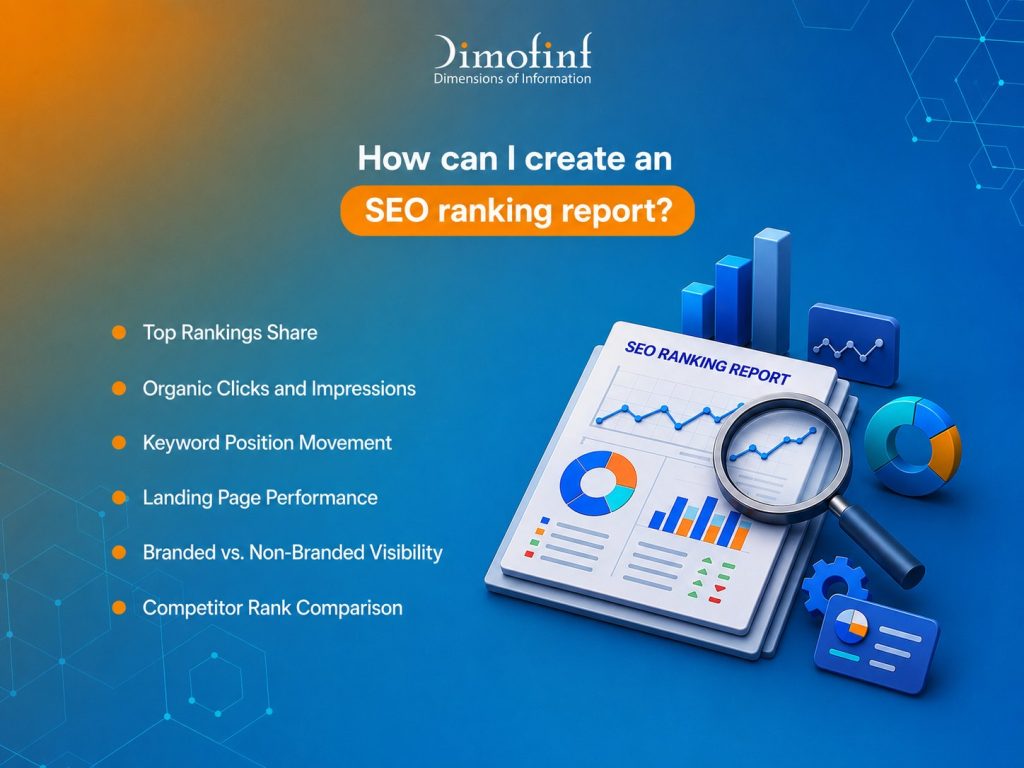
How can I create an SEO ranking report?
To create an SEO ranking report, gather baseline position data from Google Search Console and a rank-tracking tool, select key performance metrics like top 3 and top 10 rankings, click-through rates, and landing page visibility, and organize them into a clean dashboard using Google Looker Studio or automated PDF exports.
When we build an SEO ranking reports for clients or team leadership, we focus on six core metrics to give a complete picture of search health:
- Top Rankings Share: Count how many target keywords fall into position tiers 1–3, 4–10, and 11–20. Movement into the top 3 yields the largest traffic gains.
- Organic Clicks and Impressions: Combine ranking positions with traffic data to verify if higher rankings actually yield more site visitors.
- Keyword Position Movement: Track gains and losses over 30-day and 90-day periods to identify positive momentum or emerging declines.
- Landing Page Performance: Group keywords by destination landing page to see which content drives business outcomes.
- Branded vs. Non-Branded Visibility: Separate searches for your company name from searches for general industry solutions. Non-branded keywords reflect true SEO growth.
- Competitor Rank Comparison: Monitor your positions side by side with top direct competitors for major commercial keywords.
What should I do if my rankings suddenly drop?
If your SEO rankings suddenly drop, immediately isolate whether the loss is sitewide or page-specific, inspect Google Search Console for technical or security errors, verify if a Google core algorithm update occurred, and test your server’s uptime and response speed.
Seeing a sudden drop in keyword rankings can be stressful, but systematic troubleshooting helps you pinpoint the root cause and restore your search visibility.
A Step-by-Step Recovery Checklist
When we investigate a sudden loss in search rankings, we follow this diagnostic process:
- Rule out reporting delays and temporary testing: Google frequently tests search result layouts. A drop that lasts only a few hours often corrects itself naturally without intervention.
- Check the Google Search Status Dashboard: Confirm whether Google released a broad core algorithm update or search indexing system release that impacted websites across your industry.
- Review Google Search Console Security & Manual Actions: Open the Security & Manual Actions tab in GSC to ensure Google has not flagged your site for malware, hacked content, or policy violations.
- Inspect Page-Level Technical Issues: Check if recent code updates accidentally added noindex tags to primary pages or blocked Googlebot through your robots.txt file.
- Examine Server Performance and Downtime: If your web host suffers frequent downtime or slow response times (Time to First Byte – TTFB), Googlebot cannot crawl your pages reliably. Google lowers the rankings of websites that experience recurring server outages or slow page loading.
Conclusion
Learning how to check SEO ranking is essential process to keep your website visible and growing your organic traffic. By using Google Search Console to monitor long-term position trends alongside dedicated rank checkers for daily updates, you gain a clear, accurate view of how your business performs on search engines.
Whether you need to resolve ranking fluctuations, outpace market competitors, or scale your keyword visibility across Saudi Arabia and the MENA region, working with an experienced SEO team makes all the difference.
Want to boost your website’s Google rankings and outshine the competition? Check out Dimofinf’s professional SEO solutions today to accelerate your digital growth.
What our customers say
Share this article

What Is Java? Features, Uses & How It Works

Website Design Company in Riyadh | Professional Web Design

Cheapest Website Hosting: Compare the Best Affordable Hosts

What Is a Minecraft Server? How It Works & Server Types
What Is Java? Features, Uses & How It Works
Website Design Company in Riyadh | Professional Web Design
Cheapest Website Hosting: Compare the Best Affordable Hosts
What Is a Minecraft Server? How It Works & Server Types